AppId is over the quota
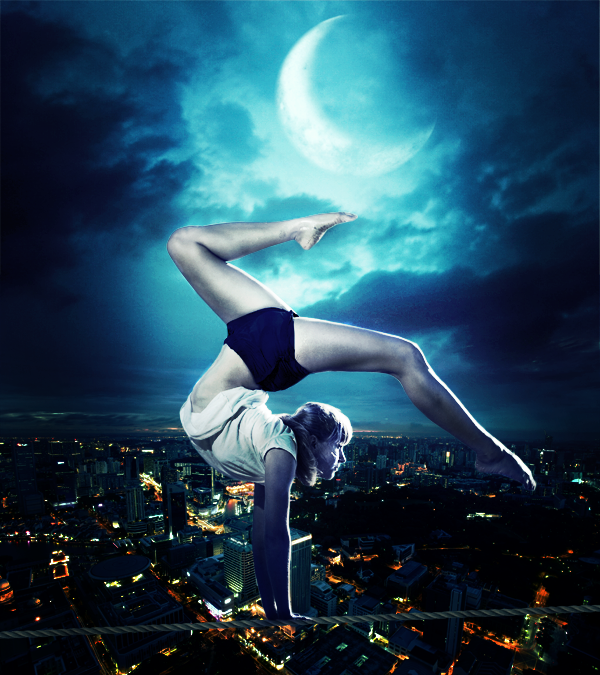 Equilibrium.zip | 106.38 MB
 Download from Website
Open the ‘City’ Stock.
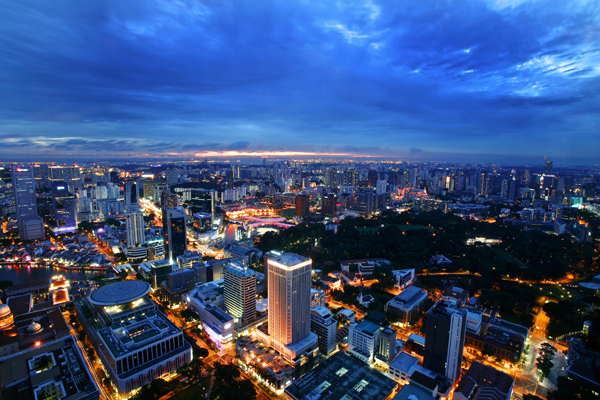
Add a Color balance Layer adjustment:
Shadows: -33 0 +14Midtones: -20 0 +26Highlights: -19 0 +5You’ll have this result.
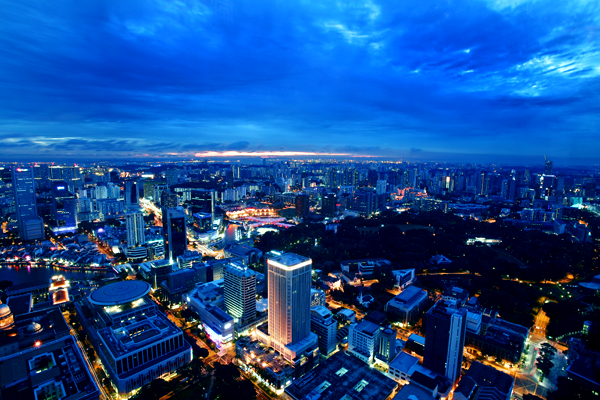
Add a Brightness / Contrast Adjustments Layer with these settings:
This is the result.
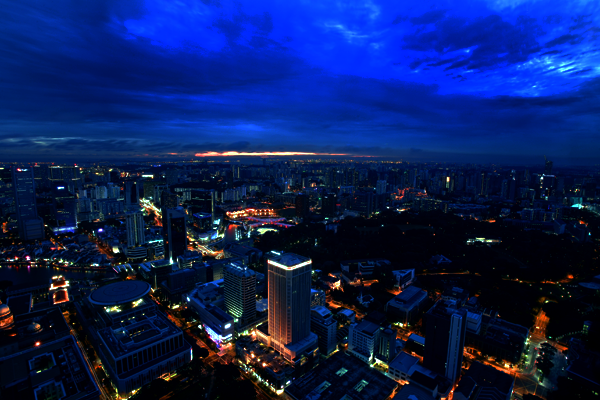
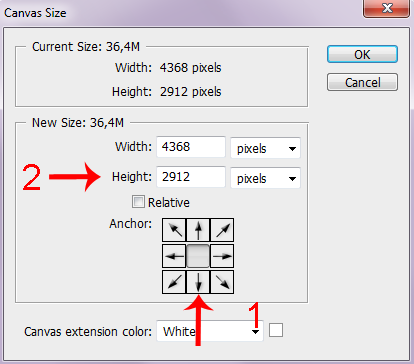
Now we have to add the ‘Sky’ to our work. So let’s create some space above the city. Go to Image > Canvas Size and click on the arrow I’m going to show you below (1). Then replace the Height with 4912 Pixels (2).
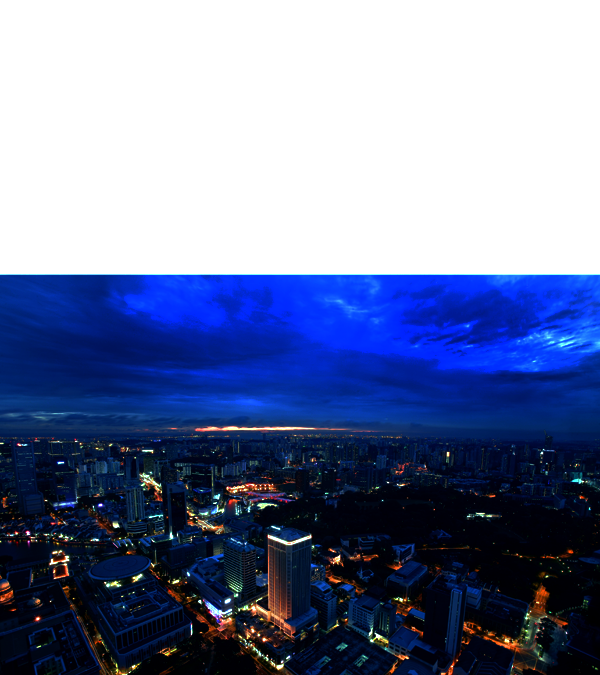
This is what we have now.
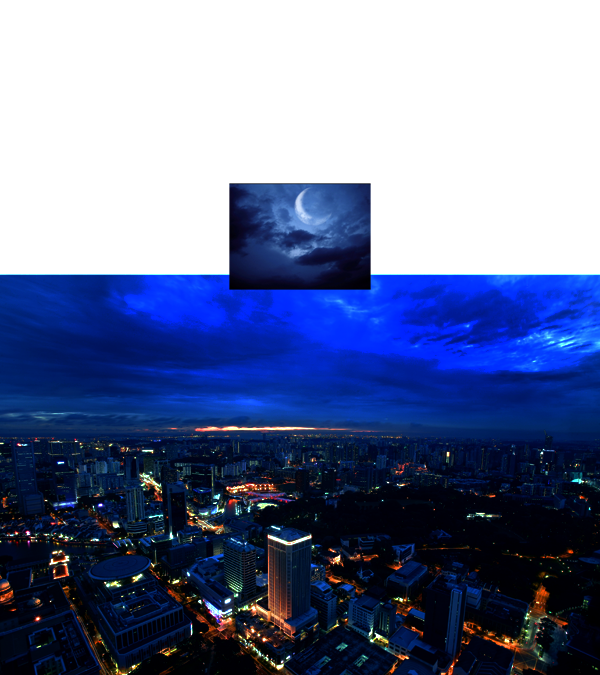
Open the ‘Sky’ stock. After cropping the stock rules advise put it in a new layer above everything.
Now resize the sky to fit it in the canvas.
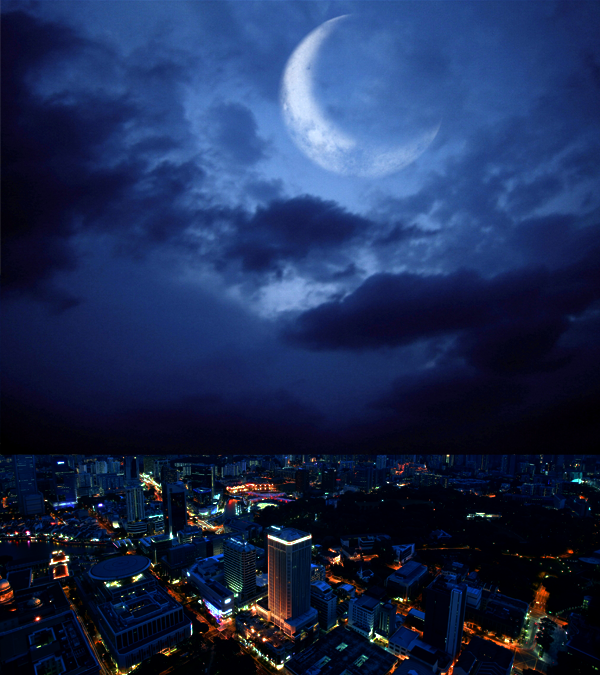
Add a Mask to the Sky layer. We need to blend it with the rest of the manipulation. Choose a soft round brush (Settings: Opacity > 30-40% – Size > 180 – Color > Black) and on the layer Mask start to paint at the bottom of the sky to gently delete the strong contrast between it and the city.
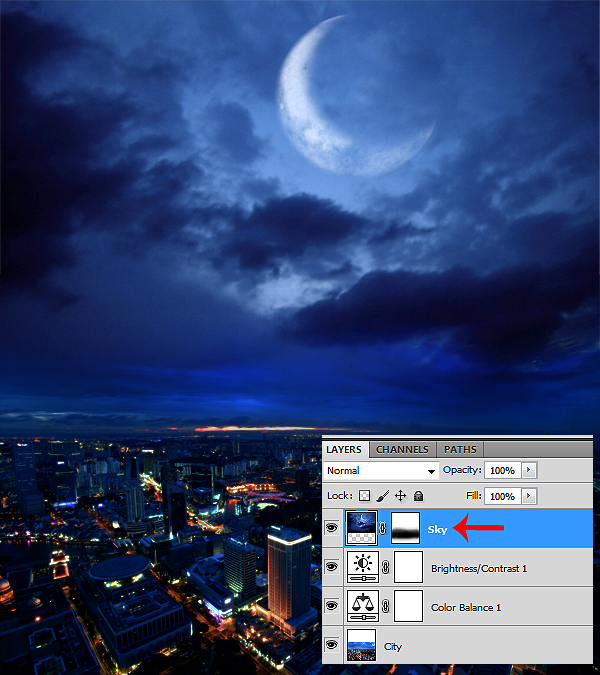
Add a Color Balance Adjustment Layer ONLY for the Sky.
Shadows -37 0 0Midtones -43 0 52Highlights -38 0 42This is the result.
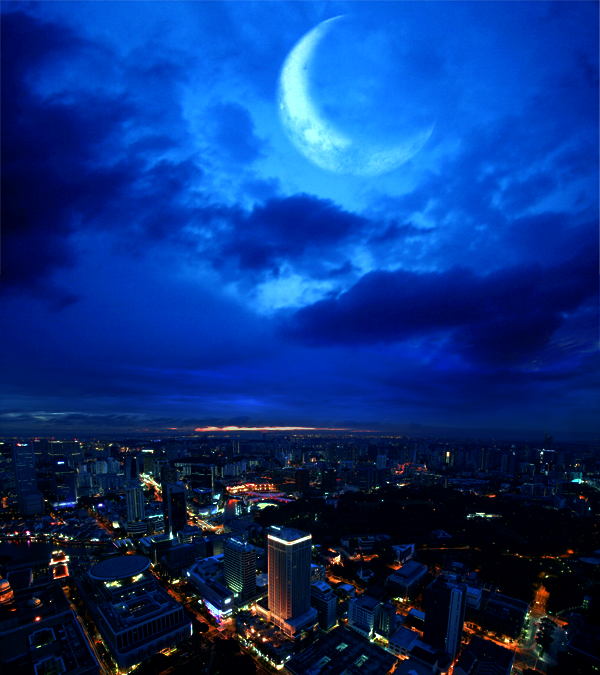
The background looks too saturated. Let’s add a Hue/Saturation Adjustment Layer
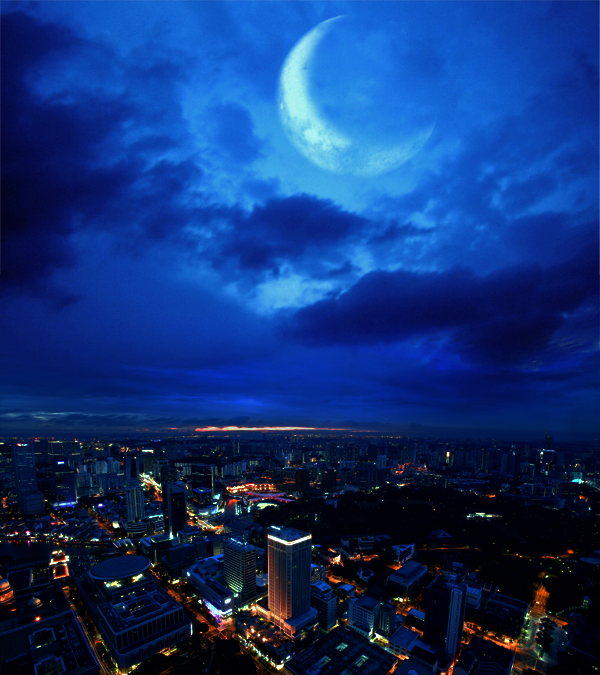
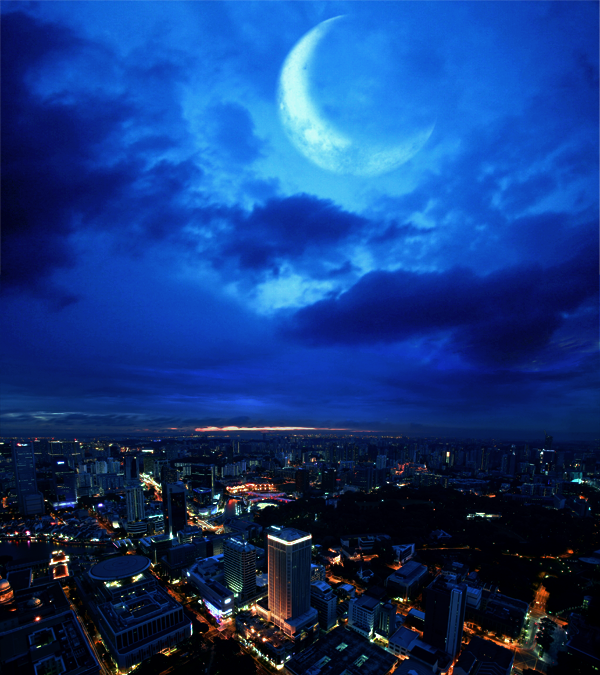
Add a Brightness / Contrast Adjustment Layer to give more Light. Set the brightness to +20. Here’s the result.

কোন মন্তব্য নেই:
একটি মন্তব্য পোস্ট করুন