মঙ্গলবার, ১৭ সেপ্টেম্বর, ২০১৩

Create inspiring gold 3D text using Photoshop extended

Error in deserializing body of reply message for operation 'Translate'. The maximum string content length quota (8192) has been exceeded while reading XML data. This quota may be increased by changing the MaxStringContentLength property on the XmlDictionaryReaderQuotas object used when creating the XML reader. Line 1, position 8889.
Error in deserializing body of reply message for operation 'Translate'. The maximum string content length quota (8192) has been exceeded while reading XML data. This quota may be increased by changing the MaxStringContentLength property on the XmlDictionaryReaderQuotas object used when creating the XML reader. Line 1, position 9473.
Failing is not always failure

3D Gold Text

Start by creating a new 1920×1200 pixels document. Select the Text tool and type in your inspirational text. The font we’re using is Bebas Neue and Pacifico. These fonts are free. Adjust the font size and leading to your likings. Use the Free Transform tool (Ctrl/Cmd+T or Edit > Free Transform) to scale your text then position the text in the middle.

Failing is not always failure text

To position your text perfectly in the center, select your text and background layers, switch to the Move tool, then click on the align center buttons in the options bar.

Align center buttons

Next we’re going to convert the text to 3D. To do this, right-click on the text layer and choose New 3D extrusion from layer.

Depending on how complicated your text is, Photoshop might give you a message that your text is too complicated for it to process. If this happens, you need to convert it to a path and use Adobe Illustrator to simply the path. To do this, right-click on the text layer and select Convert to Shape. Copy the shape layer to your clipboard then paste it into a new document in Adobe Illustrator. In Illustrator, go to Object > Path > Simplify. Checkmark the preview option then adjust the settings so that you get the least amount of points without distorting the text much. Copy and paste the text back into Photoshop. When you paste, Photoshop will ask how you want to paste your text as. Select Shape Layer then click OK. Delete the other text layer then right-click on the new shape layer and select New 3D Extrusion from selected layer.

Adobe Illustrator Simpify Text

Once you convert your text into a 3D extrusion, Photoshop will switch you to the 3D interface. Go back into the Layers panel and select the background layer. We’re going to convert this to a 3D object so that we can use it as a wall for the 3D text. Right-click on the background layer and select Postcard. Switch back to the Layers panel and select the two layers. Merge the layers into a single 3D layer by pressing Ctrl/Cmd+E.

We’re going to start by reducing the thickness of the 3D text. Select the 3D text layer in the 3D panel

In the Properties panel, reduce the Extrusion depth setting. You can get a better preview by going to 3D > Render to do a quick render of the scene. Photoshop will start rendering the picture and when it looks good enough, click anywhere to stop the render. Keep adjusting the setting and rendering until you get the results that you like. For my text, I used an extrusion depth of 100.

Now we’re going to make the 3D text look gold. Select text material layers in the 3D panel. You can select multiple layers by clicking on the top material layer then holding the shift key and pressing on the last materials layer.

Your Properties panel will switch to the Materials settings. Start by setting the Diffuse color to a yellow-orange color. The color I’m using is #FFC000.

We’re going to work on the rest of the materials later when we have everything else set up. For now, we’re going to align text layer with the background layer. Change your camera view to Left by right-clicking on the view box on the bottom-right corner and choosing Left.

Next, select the text and background layer groups. You can select multiple layers by holding the Ctrl or Cmd key. Select the Move tool then click on the align left edges button in the options bar. Now your text is aligned with the background and you can switch your view back to the Default Camera view.

Render your scene by pressing Alt+Shift+Ctrl+R (Option+Shift+Cmd+R on Macs) to get a preview of how your text looks like. Everything looks pretty flat and if you like it this way, you can let Photoshop render the entire scene and save your image. We can do a lot more to make our quote look more dramatic by adding some lights. Lighting is a huge subject and it plays a large part in how your 3D text will look. There are many ways to light your 3D text but we’ll show you an easy one that uses just one light.

3D Text

To add a light to your scene, click on the New Light button in your 3D panel and choose New Point Light.

We’re going to position this light on the top-right corner of the text and have it cast a shadow diagonally. Moving a light to the perfect spot takes a bit of experience with 3D but there’s an easier way to do this. Select the Move tool and set the 3D mode to Rotate in the options bar.

In the view box located on the bottom left of your screen, drag to reposition your view so that you are looking at your 3D text from the top-right corner. Think of it like playing a first person shooter game – you want to reposition yourself so that you can shine your flashlight from the upper-right side of the text. Once you’re in the right angle, switch your 3D mode to Slide and position yourself so that you’re further away from the 3D text. When you’re in the right position, click on the Move to View button in the Properties panel to move your point light to your current view. To make your shadow more noticeable, increase your intensity. We’ll readjust this setting later. Switch back to the Default Camera view then render the scene to preview your lighting. Play around with the camera view and light intensity to get the results that you like.


View the original article here

Create a Retro and Futuristic Design in Photoshop

AppId is over the quota
final

First, start Photoshop and create a new document. This tutorial is also going to be a wallpaper, so the size i’m using is 1920 x 1200. You can follow all the individual settings as shown in the diagram below.

new box

Create a new layer and fill the contents with black. The base colour of the background is going to be black. Get the nebula stock image from the resources and drag it into your document on a new layer. To make it look good, we are going to reduce the opacity of the nebula layer to about 86%. You can also rasterize the background nebula by right clicking on the layer and selecting rasterize.

cs5 layer ex

The background is a little grungy, so we are going to remove a little bit of the grunge by going to Filter>Blur>Surface Blur………and use the settings as shown below.Radius 18 & Threshold 23

surface blur tab

Drag and drop the photo of your model into the document. It was pretty easy to remove the model from its original white background by using the magic wand tool and the layer masks feature.

retro-futuristic-snapshot

This step is what i call the focal circle. The focal circle’s main job is to create a “focal point” in the image. (irony huh?). To create the circle, create a new layer by pressing CTRL + N on your keyboard. Now using the Elliptical Marquee tool (“M”) hold shift and drag & draw a perfectly round circle and fill it with black.

focal circle 3

To cut out the middle of the circle use the same procedure by holding shift and drawing a perfectly round circle. When the selection has been made, drag it into the middle of the totally black circle and press delete. This should now leave us with a circular ring.

focal circle 2

Voila!! Now we are going to move the circular ring layer below the model’s layer. To give the impression that the model is slightly coming out of the ring i’m going to use the eraser tool and erase “a little bit of her backside” as shown in the demonstration.

circular-eg

I used a reasonably sized large soft brush to erase the portion of her legs.

To give the ring a neat retro effect i’m going to use layer styles and the default photoshop patterns. I’m using Photoshop cs5 to write this tutorial so lets hope our features look and behave the same way…………Anyways!!!

Double click on the circular ring layer to open up the layer styles dialog box or right click and select blending options.

retro-futuristic-eg1

Click on pattern overlay and follow the settings as shown below. Scale is set to 85% and i clicked the small arrow in the dialog box to choose the desired pattern.

pattern-layer-style

The second layer style we are going to add to the circle is gradient overlay. Leave it at its default black to white gradient but change the blend mode to overlay and the scale to 37%. This gives us a nice gradient effect utilising the pattern.

gradient-layer-style


View the original article here

Create a surreal works of Gothic art in Photoshop

Gothic Lolita_small

Create a new file, 2000x2000px 300dpi.

step1

Now, the inventory of soil and put him on the canvas.

step2

Press CTRL + T and from the corners to stretch, so it large enough to cover it.

step3

Then drag it down the upper limit to a realistic-looking floor to get. Press ENTER to stop the transformation.

step4

Now, take the wall-comb and place it in the middle. If necessary, change the size. Make sure that you have to keep it on a separate layer.

step5

Take the wallpaper tile and move so that you can more easily see the pattern. The background layer should be under the wall Crest level.

step6

Duplicate the tile (layer > duplicate layer) and move it next to the first one – make sure there are no gaps between the tiles!

step7

Merged the tiles. (Select both layers in the layers palette and press CTRL + E)

step8

Duplicate the layer with two stones, and place the duplicate among them. Again, look out for will be shown after gaps in the background.

step9

Continue following the pattern of duplicate and merging of the tiles together. You can make it a bit larger. (CTRL + T, and then stretch the corners)

step10

The whole wall is finished - but just be sure 100% to ensure that no spaces to enlarge. All stones must be merged on one level.

step11

Go back to the wall Crest level, and then on the area around the Ridge with the magic wall tool (W). You should have a similar selection. Make sure that the connected check box is selected when you select.

step12

Now go to the wallpaper layer and press CTRL + SHIFT + I, and your selection will reverse. Press delete, the area within the wall clear. Finally press CTRL + D to make the selection.

step13

Place stormy sky, to a new level under the hood. Size cute look a little up the clouds.

step14

This is the result of that you should see.

step15

Go to the correction of color to image > adjustments > brightness/contrast and move the sliders settings (-150 and 35) shown. Also controller "Dynamics" at 60.

step16

Now take the burning tool with settings and burn that with red marked areas.

step17

The wall should now look like.
step18

Now, the floor layer. To get the match of the colors, go to image > adjustments > hue/saturation and color tone to take, to 163, saturation to-100 and brightness to - 43. Burn the Red areas with previous burning tool settings.

step19


View the original article here

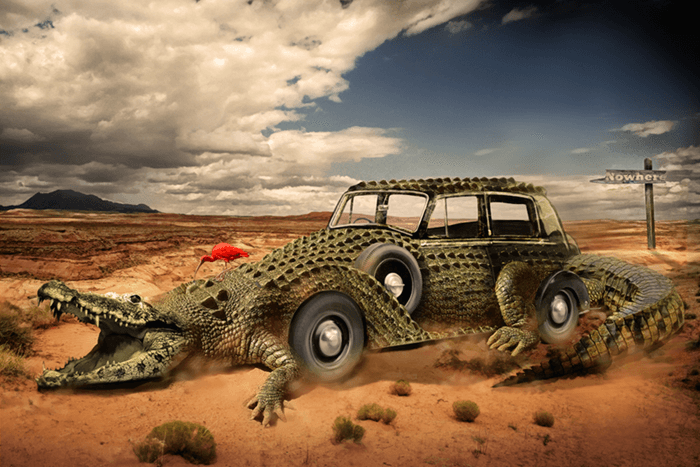
Combine a Crocodile with a Car to Create an Exotic Crocomobile

AppId is over the quota
Crocodile Car

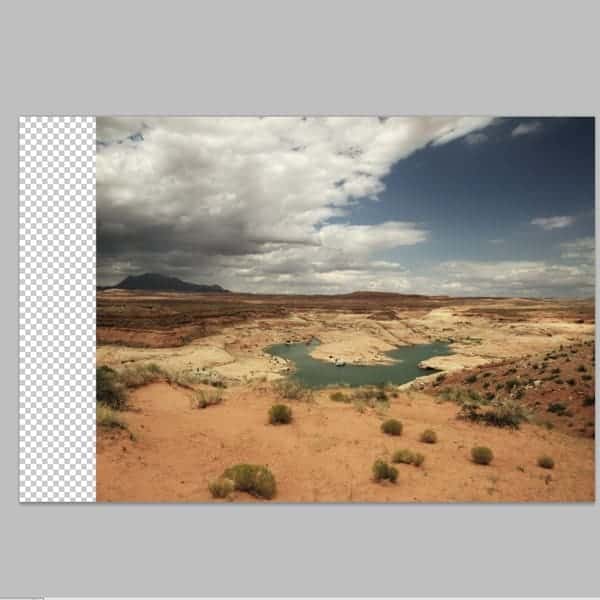
Open the background image and place it on the right. Because the image in not wide enough we need to duplicate it and complete the empty space with the same photography. Duplicate the background layer and place it on the left. Create a clipping mask and erase the edge of the duplicated layer.

1

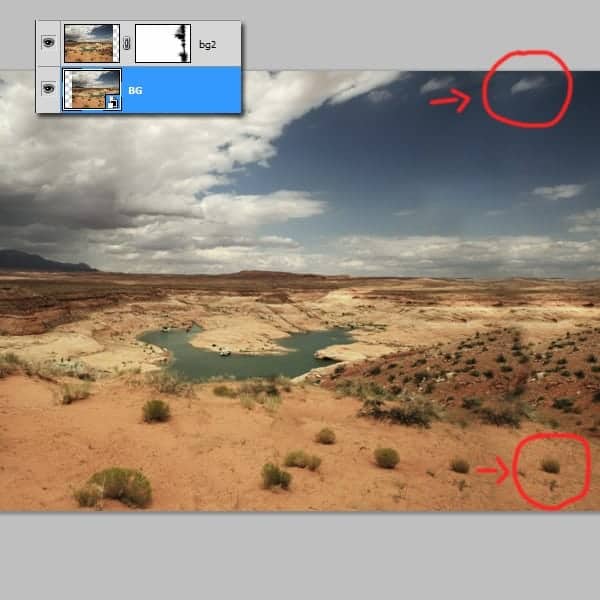
Now you will see that some parts are repeating themselves , such as clouds and bushes. Select the clone stamp tool and cover them up.

1a

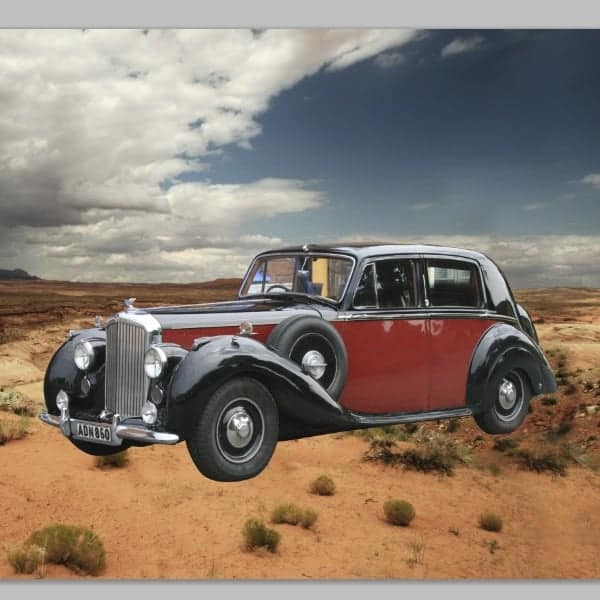
In this step we will cut out the car using the pen tool and place it in the desert. Remember cu cut out the windows also .

2

2a

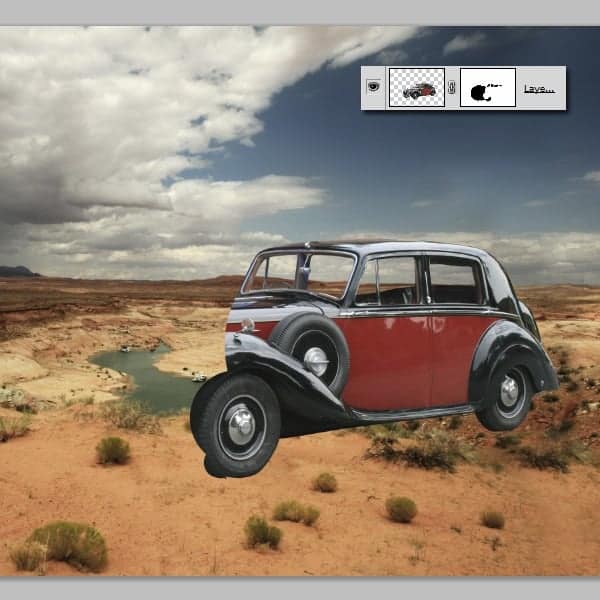
Erase the front part of the car using a brush on the layer’s mask. We don’t need this part because it will be replaced with the crocodile. Always use a mask when you want to erase things in photoshop because you never know if you want it back.
2b

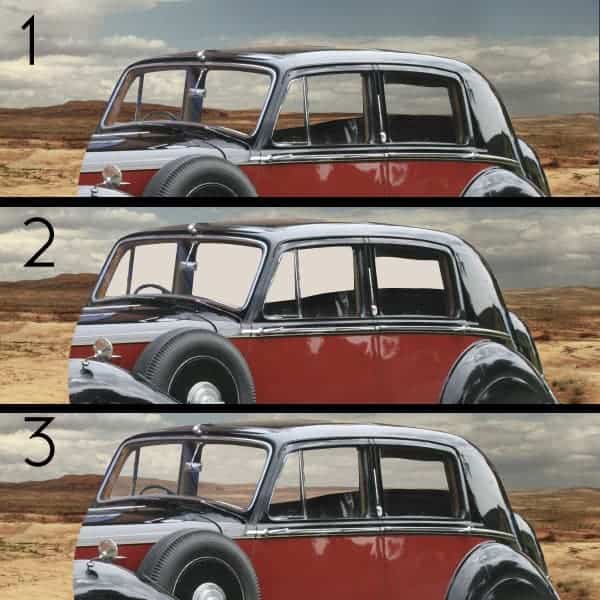
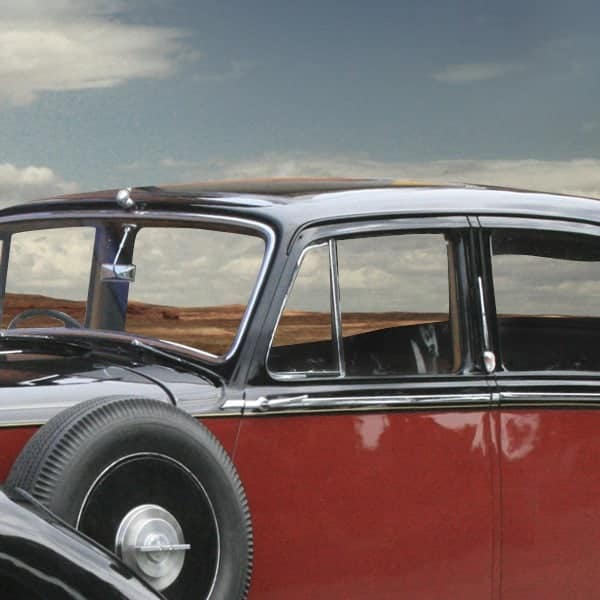
Create a new layer under the car an, using a basic brush , paint the windows white. Set the opacity to about 15-20%.

2c

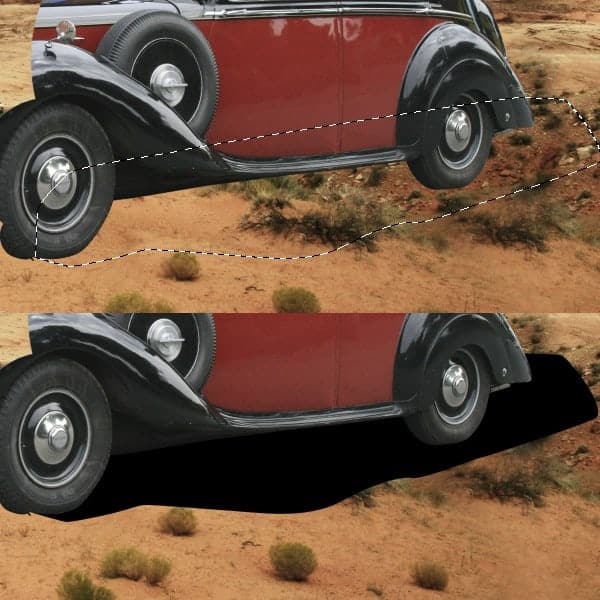
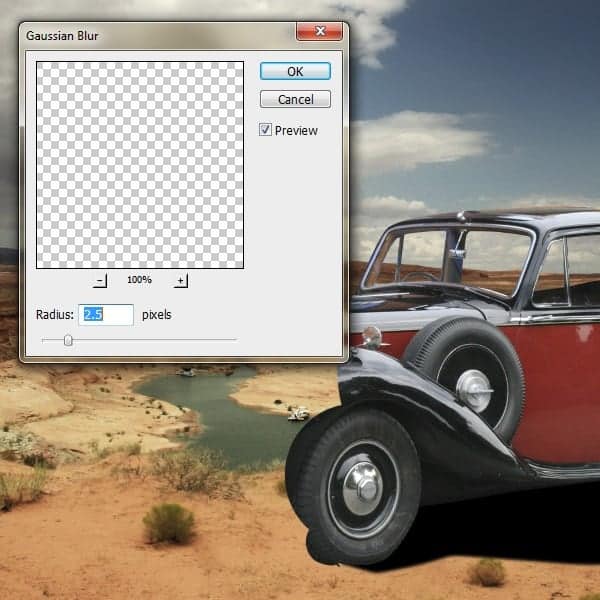
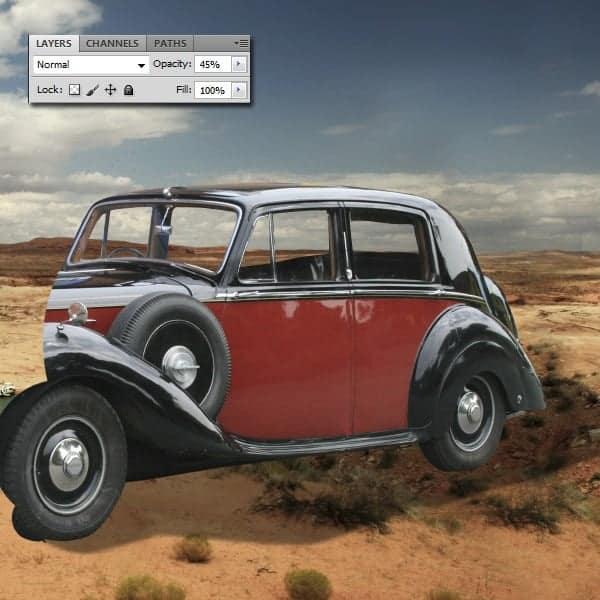
Let’s create the car’s shadow. Create a new layer. Use your imagination to see how this will look. Use the pen tool for this and fill the path with black. Go Filters-Blur-Gaussian Blur and set it to 2,5. Now the the layer’s opacity to 45%.

3

3a

3b

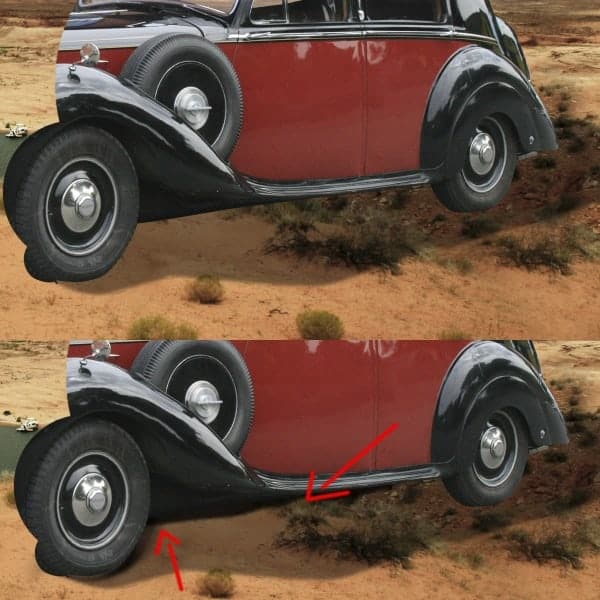
The car needs to have a small and darker shadow, so on a new layer, using a basic brush add a small shadow. Use the image below for guidance.

3c

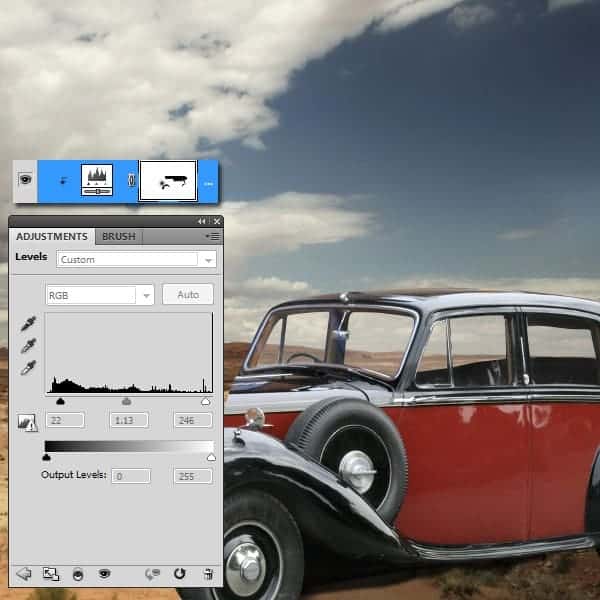
In step 4 you will need to create a few clipping masks for the adjustment layers so we will adapt the car’s colors to the desert. Go to Adjustment Layers-Levels. Make the presets as you see below, and remember that this is a clipping mask, so it only affects the car ( to create a clipping mask you need to press the alt key and click between the layers you want to clip together.)

4

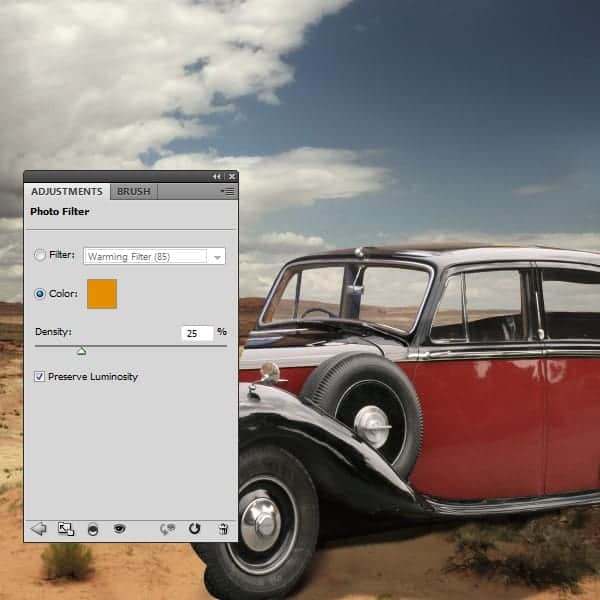
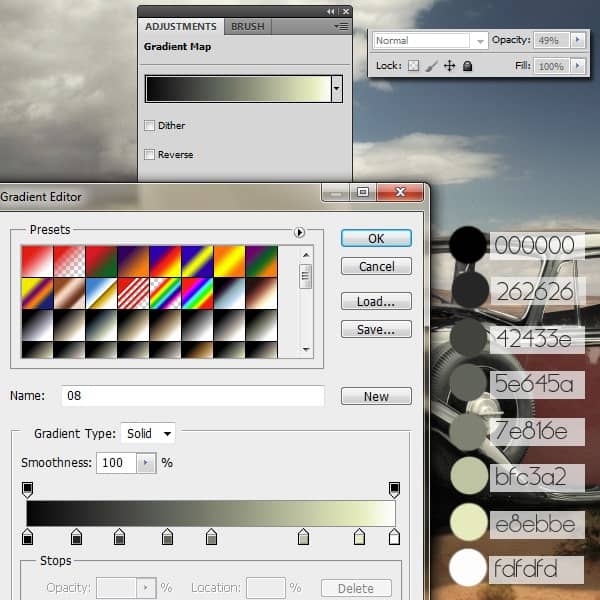
Adjustment Layers-Photo Filter Adjustment Layers- Gradient mask . Both layers are clipping masks.

4a

4b

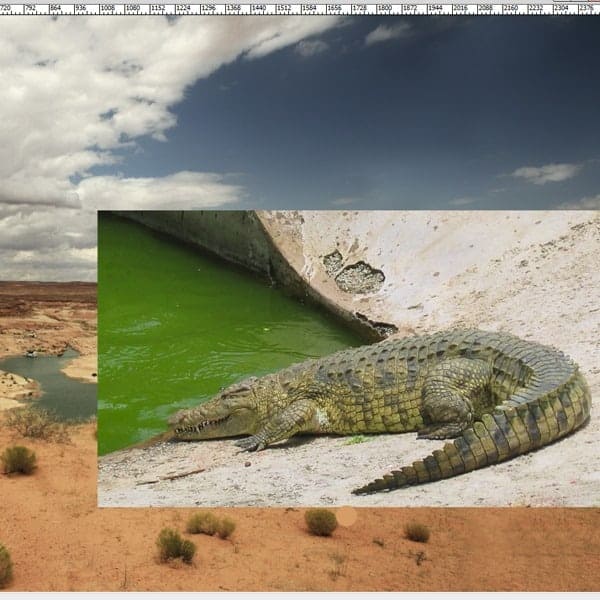
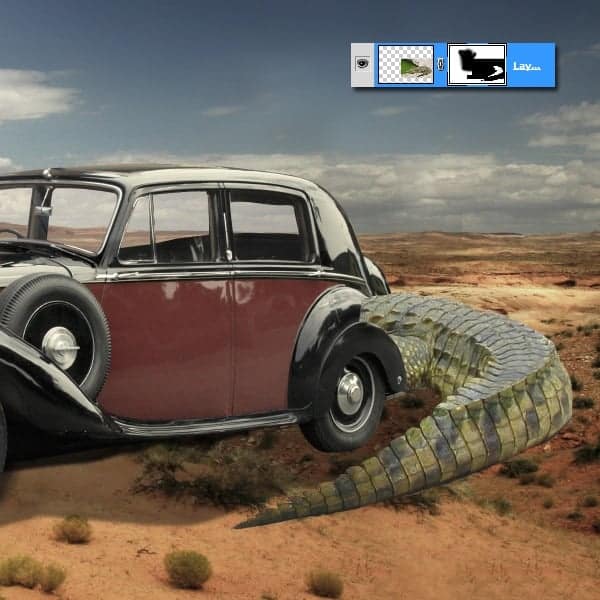
Open the first crocodile photo. We will use the tail from this crocodile. So cut out it and place it at the back side of the car as you see in the image below.

5

5a

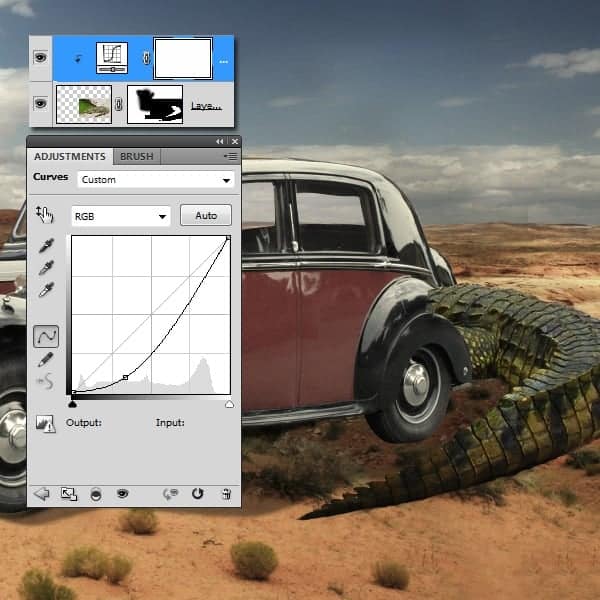
Use a clipping mask to add to make the tail look darker, so go to Adjustment Layers-Curves. You have the presets in the image.

5b

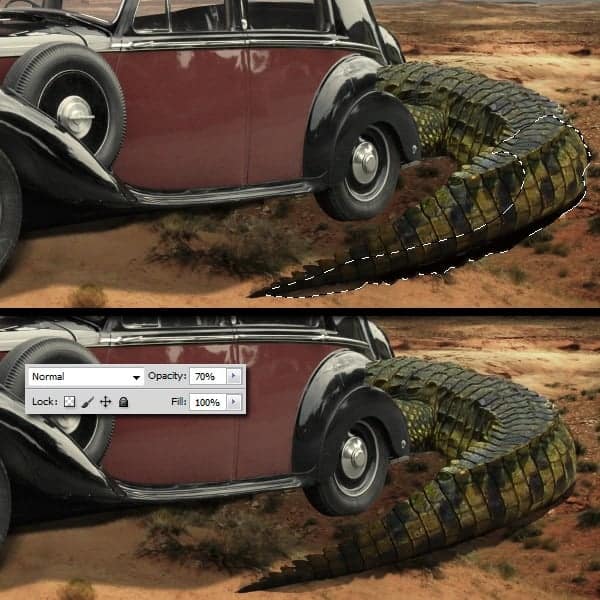
We need to add some shadow to the tail so using the pen tool create a shape that resembles to the tail’s edge. Fill the path with black and the opacity to 70%.

5c

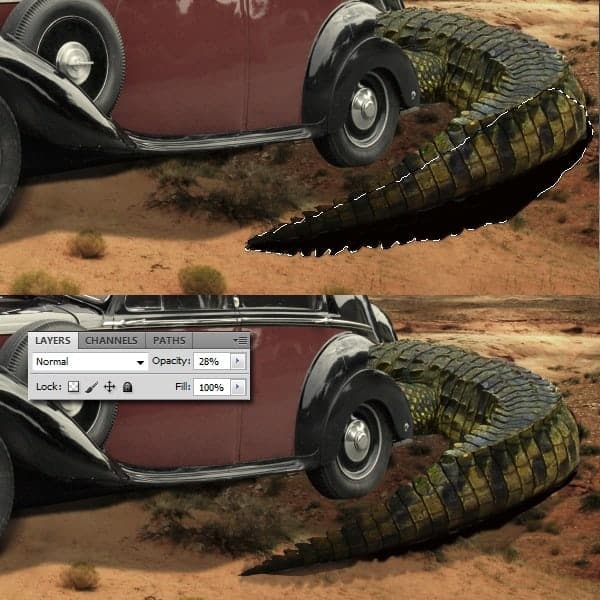
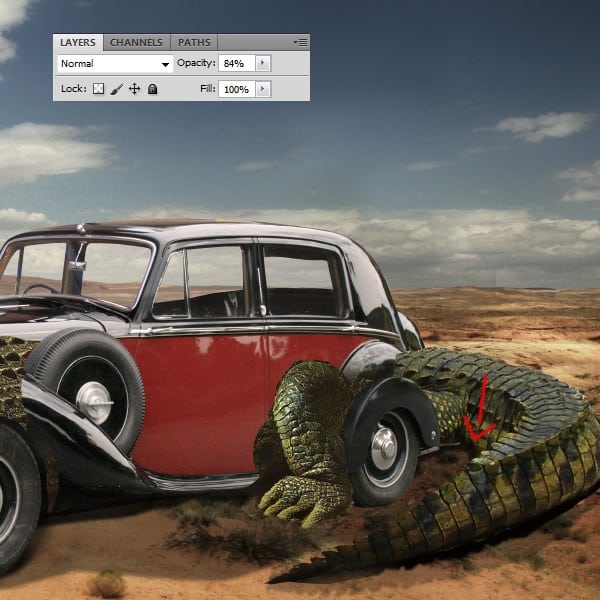
Using the same techniques as you did on the step before this , create a bigger shadow. Set the opacity to 28%. Remember that the tail casts a shadow in the inner corner so create a shadow there to. Set the layer’s opacity to 84%.

5d

5e


View the original article here